
Risk management
General information
The Risk management provides tools for assessing potential risks to your online shop and reduces the impact of these risks. In particular, this feature addresses the risk of default payments. Here the system will analyze the information of your customer in order to minimize payment risks. You can assign a set of rules for each payment method within this module. Aspects taken into consideration include analysis of products from a certain category, orders made over a certain amount, history of default payments, etc.
After setting the risk parameters in the backend, the system will automatically assess critical customers and/or notify the shop owner of the potentially problematic customer. This tool is not meant to block customers from making a purchase in your shop, as the system dynamically adjusts the payment methods available to the customer.
All sanctions can be carried out automatically and/or manually by the shop owner. So for example, pay on delivery or credit can be excluded for particularly expensive purchases.
- Evaluation of bounced orders (debit, credit) in order to create a pattern for the most common causes for order cancellation.
- A set of rules which can be configured with provisions and triggered for every risky payment method / purchasing behavior (i.e. you can block direct debit for first-time customers from a foreign country who place an order over X from category XY).
- Payment methods can be modified after the order has been received.
How it works
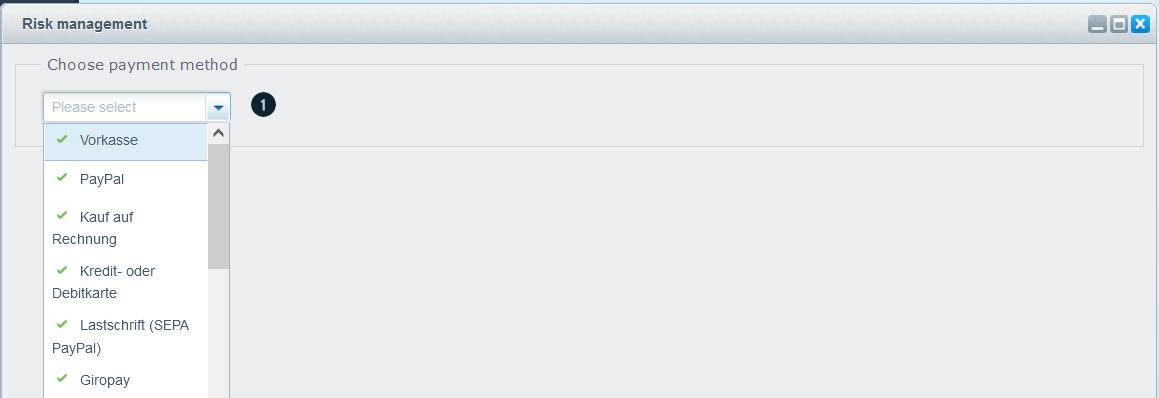
Select the payment method (1) to which you would like to assign a set of rules:
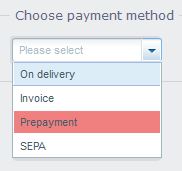
Payment methods with active rules will be highlighted in red:
You can define as many rules as required for the payment method in question. Once an arrangement of rules is triggered, the payment method will be deactivated in the frontend.
Each rule can be assigned two conditions! Make sure that the default and fallback payment methods have not been assigned any restrictions in risk management.
Possible rules
| Rule | Syntax | Example |
|---|---|---|
| Order value >= | Value numerical | 500 |
| Order value <= | Value numerical | 500 |
| Customer group IS | ID of the customer group | EK for customers, H for merchants |
| Customer group IS | ID of the customer group | EK for customers, H for merchants |
| Customer IS NEW | 1 or 0 | 1 |
| Zone IS | Germany, Europe, World | Germany |
| Zone IS NOT | Germany, Europe, World | Germany |
| Country IS | Country Iso | e.g. DE for Germany |
| Country IS NOT | Country Iso | e.g. DE for Germany |
| Ordered items >= | Value numerical | 5 |
| Dunning level one IS TRUE | ||
| Dunning level two IS TRUE | ||
| Dunning level three IS TRUE | ||
| Encashment IS TRUE | 1 oder 0 | 1 |
| No order before at least X days | Value numerical | 30 |
| Number of orders <= | Value numerical | 10 |
| Item from category | ID of the category | 3 |
| Zip code IS | Value numerical | 48624 |
| Street name CONTAINS X | Street name or a part of the name | e.g. 'delivery', disables the payment for each address containing 'delivery'. |
| Customer number IS | Value numerical | 12345 |
| Last name CONTAINS X | Value numerical | Yoda |
| Shop IS | Name of the shop | English if a shop with this name has been defined in the basic settings. |
| Shop IS NOT | Name of the shop | English if a shop with this name has been defined in the basic settings. |
| Shipping address != Billing address | Shipping address is not billing address | |
| Currency Iso IS | Currency Iso | EUR |
| Currency Iso IS NOT | Currency Iso | USD |
| Item attribute IS (1>5) | attr#|5 | e. g. attr5|2 disables the payment method if there are any items in the basket with attr5 = 2 or attr4|true disables the payment method if there are any items in the basket with attr4 = true. |
| Item attribute IS NOT (1>5) | 5 | e.g. attr5|2 disables payment method if there are no items in the basket with attr5 = 2 or attr4|true disables the payment method if there are no items in the basket with attr4 = true. |
| Customer-attribue IS | attr1|1 | attr1|1 Disable payment method if the customer attribute attr1 = 1 |
| Customer-attribute IS NOT | attr1|1 | attr1|1 Disable payment method if the customer attribute IS NOT attr1 = 1 |
Example conditions
- Block debit when the country IS NOT UK (debit is only permitted in the United Kingdom)
- Block invoice when the customer group IS NOT H (only merchants may pay by invoice)
How to create a rule
Select the payment type for which you want to create a corresponding rule. In this example we are working with PayPal, Pay later.
Now you can select and define the desired rule for the selected payment method. We chose the rule Last name CONTAINS X (1) and entered PATTERN (2) for the value and clicked Save (3). This means customers with the last name Pattern cannot use PayPal, Pay Later as the payment method.
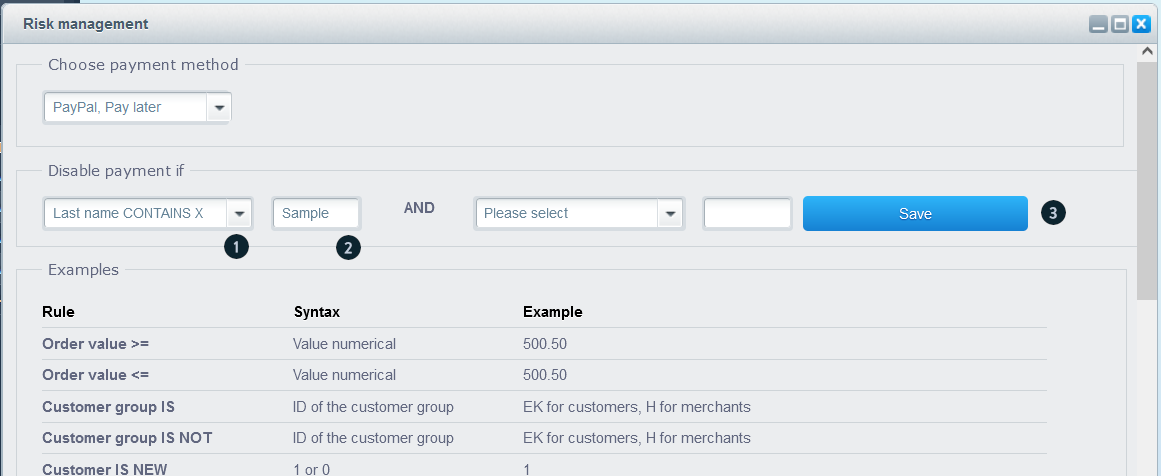
Since two rules can be linked together, you could refine this rule even further. Following this example, we can generate an additional set of rules:

After saving the AND rule, an OR rule (1) will activate. This offers the opportunity to define additional rules for the corresponding payment method. You can delete a complete rule set by clicking the Delete (2) button.