
Plugin: Live Shopping
The Live Shopping Plugin allows you to offer items over a defined period of time or a defined amount with a promotional price.
You have 3 options to promote the articles:
- Standard: Der Artikel wird über den definierten Zeitraum und/oder Kontingent angeboten.
- Discount per minute: The price will be decreased every minute.
- Surcharge per minute: The price will be raised every minute.
Installation
This extension can be found in our Shopware Store, the easiest way to find a specific plugin is the search-bar. Complete the order process and login to the backend of your store. Navigate to Configuration > Plugin manager > My purchases. You need to login and click the refresh button. Your new extension is now listed and can be installed. After installing the extension go to the menu entry installed and refresh. Activate the extension. Finally delete the cache under Settings > Cache/Performance > Clear Shop Cache and refresh the backend.
Plugin Settings
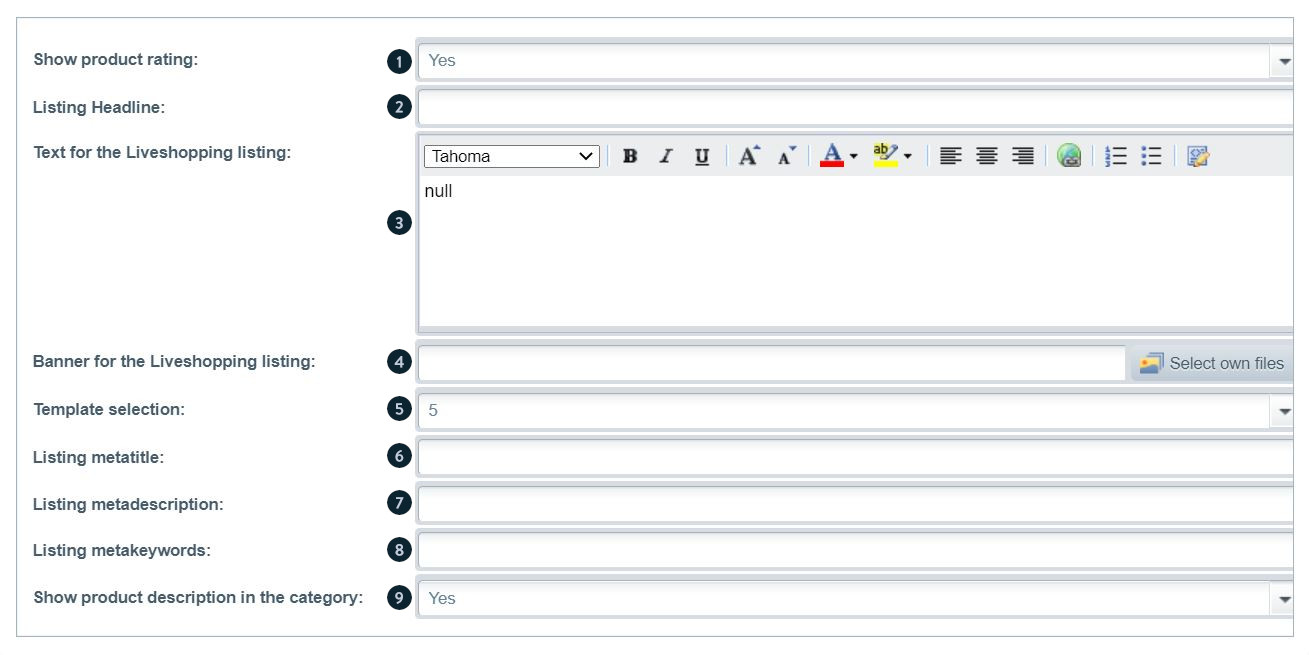
The plugin settings offers you various options:
- Show article ranking (1): When setting Show article rating to yes, the article ratings are displayed in the listing as well as in the / live shopping listing.
- Listing headline: (2): You can define an introduction text which appears on top of the Live Shopping Listing (2) in the frontend
- Banner for the Live Shopping listing (3): Select a banner which appears in the Live Shopping Listing
- Template selection (4): The option Template Selection, offers you the possibility to change the number of columns displayed in the Live Shopping listing.
- Lsting Meta Title (5): Defines the meta-title in the head-tag
- Listing Meta Description (6): Defines the meta-description in the head-tag
- Listing Meta Keywords (8): Defines the meta-keywords in the head-tag
- Show product description in the category (9): Defines if the product desscription is shown in the listing or not
How to create a Live Shopping Article
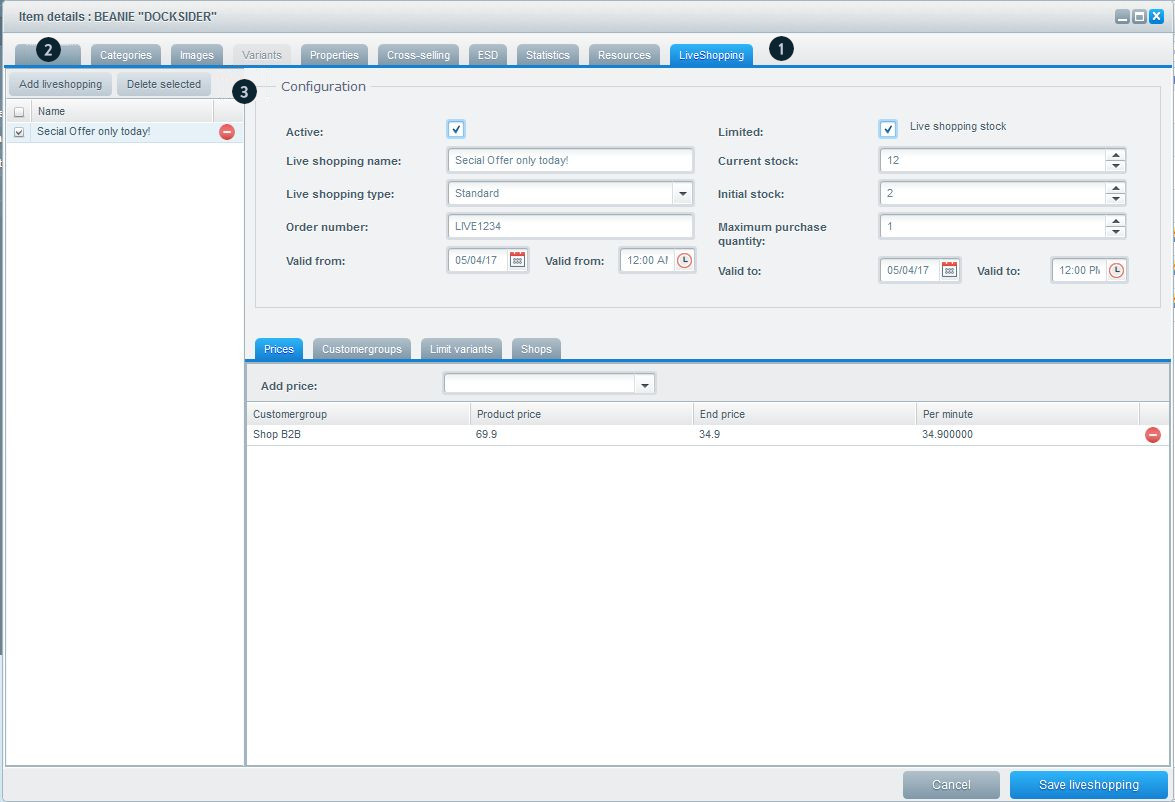
Open the article and click the tab Live Shopping (1). Use the Add Live Shopping (2) button to create a new Live Shopping action.
To remove Live Shopping actions, simply select the appropriate Live Shopping actions and remove them by using the button Delete Live Shopping (3).
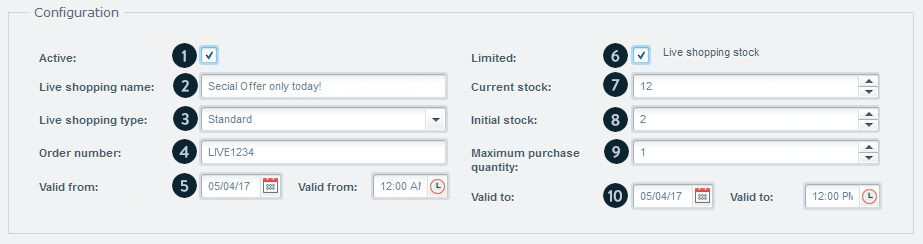
After you created a Live Shopping action, the configuration window becomes visible. Until then you are able to define your Live Shopping settings for the selected action.
Following options are available:
- Live Shopping Name (1): Internal name for the action.
- Live Shopping Type (2): Determines whether the item is sold in standard as discount per minute or surcharge per minute.
- Order number (3): Specifies the order number for the action.
- Valid from von (4): Sets the date and time when the action starts. The start date or time must be before the end date or time- Otherwise the date cannot be set.
- Active (5): Activate the action
- Limited (6): Determines whether the number of action items is limited or not. If the number is limited, the exact number of items available for the Live Shopping price appears as a purchase incentive in the frontend.
- Current stock (7): Sets the stock when limiting.
- Initial stock (8): Sets the initial stock level. This option as like a pseudo stand. This value is crucial for the scale of the limitation.
- Maximum purchase quantity(9): Sets the maximum number of items that can be sold at once.
- Valid to (10): Sets the time and date at which the action is terminated. The end date or time may not be before the start date or time. Otherwise the date cannot be set.
After you have configured your Live Shopping action, click the button Save Live Shopping button before setting further options.
- Prices (1): Specifies prices specific to each customer groups. 'Product price' is always the initial price and 'End price' sets the final price or in standard mode the action price. 'Per minute' will show you the price difference per minute.

- Customer groups (1): Defines for which customer groups the action is visible.

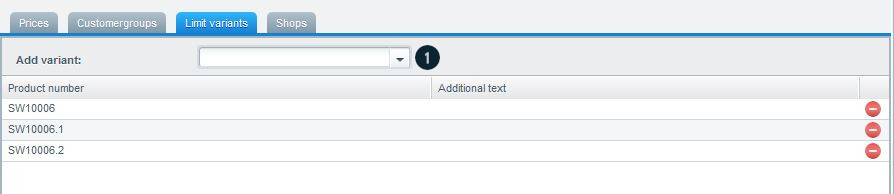
- Limit variants (1): Determines which article variant price(s) will be reduced
- Shops: Defines the (sub) shops where the action will be visible.

After the settings the Live Shopping you have to save the article once more. Other the changes will not be accepted.
The different modes of the live shopping actions
The plugin offers 3 different modes for live shopping in total.
Standard
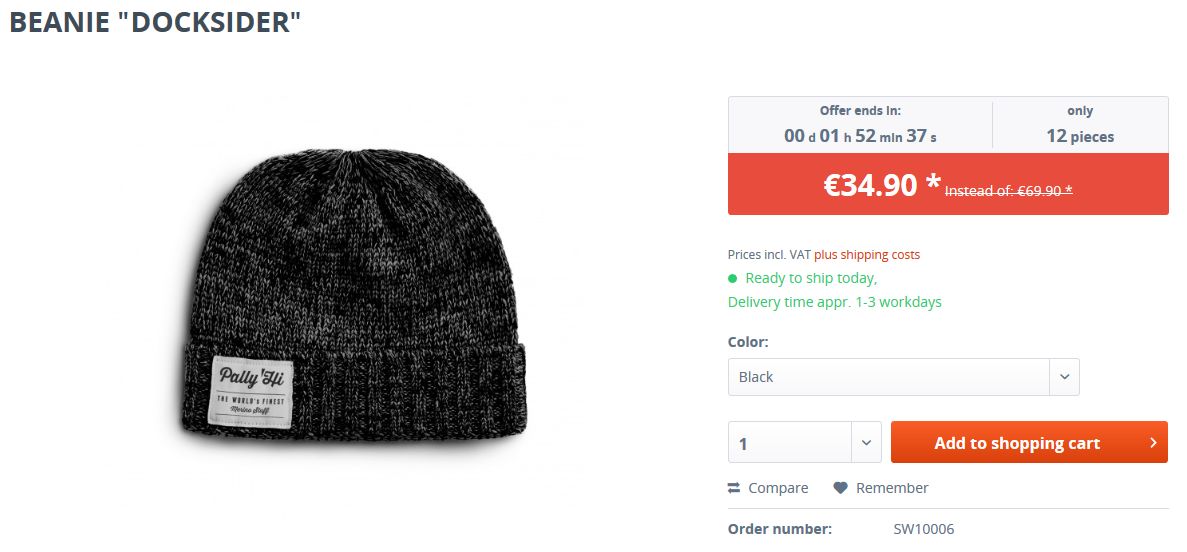
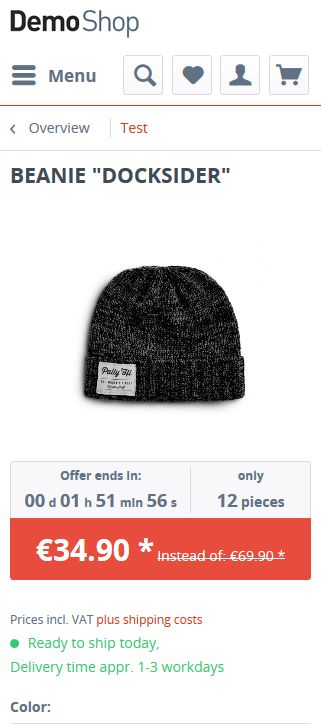
The discount is offered for a limited time period. The article price will be given out in the frontend as a bar price (instead of :). The final price is the promotional price. In this module you can neglect the column 'per minute' as this has no meaning here!
Desktop view:
Mobile view:
Discount per minute
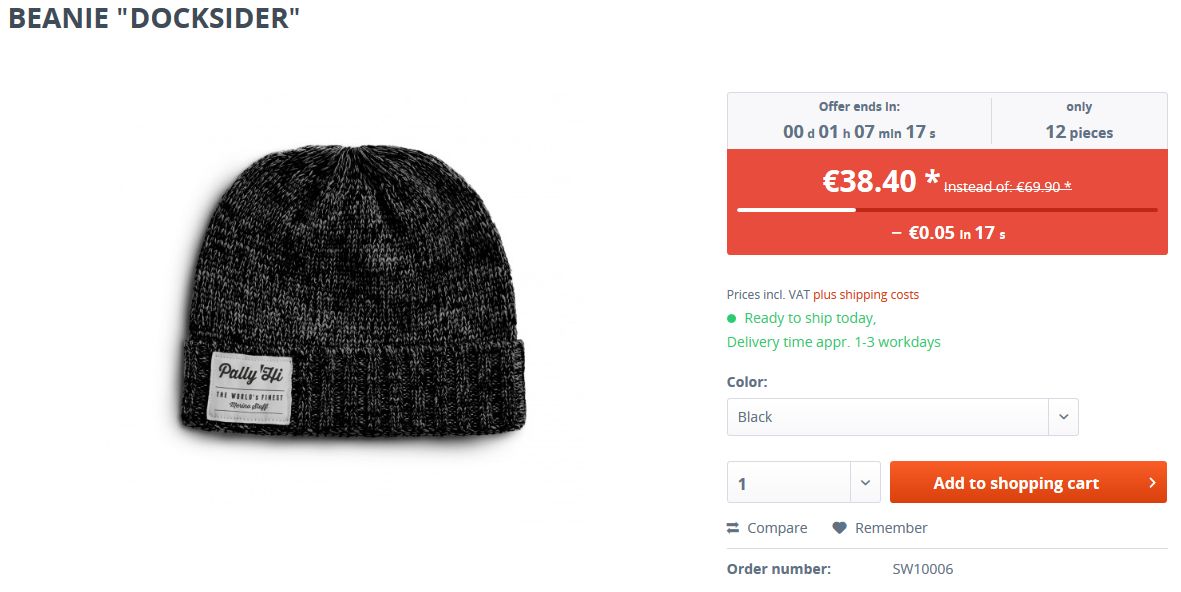
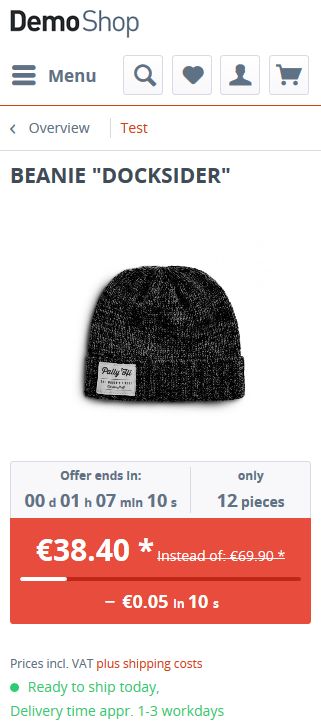
The article will be getting cheaper every minute during the given period. The article price is your starting price, the final price defines the price of the last minute of the promotion and the column "Per minute" shows the amount of the article discount which is getting cheaper each minute.
Desktop view:
Mobile view:
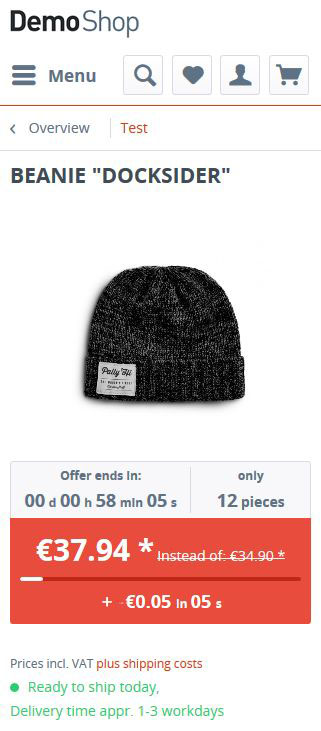
Surcharge per minute
This is the exact opposite to the discount per minute.
Desktop view:
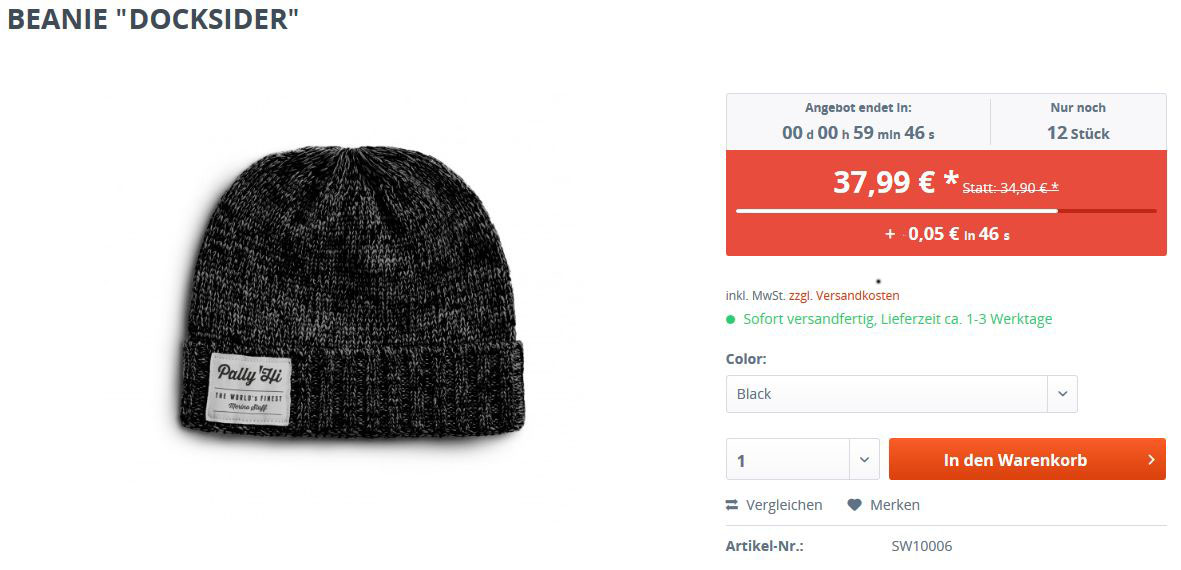
Mobile view:
Views in the frontend
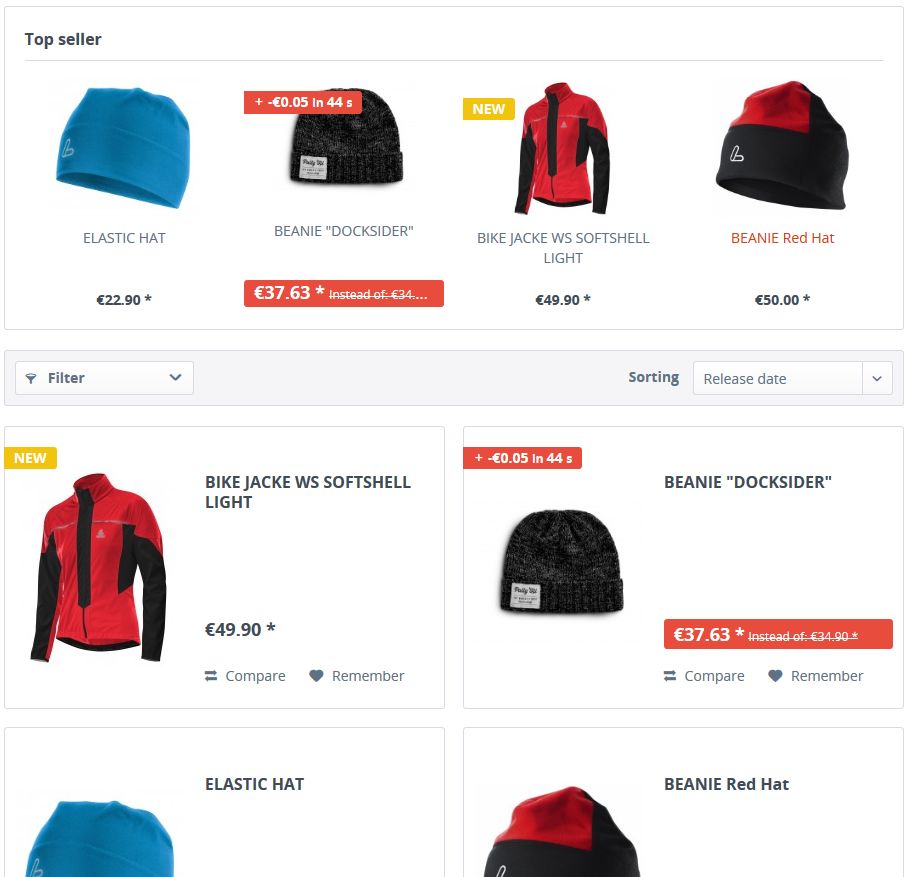
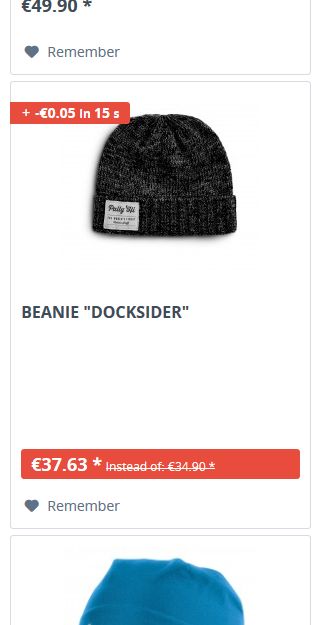
Live Shopping articles are specially marked in the frontend in the listing and on the item detail page.
Articledetails
See above.
Listing (Listing view)
Desktop view:
Mobile view:
Shopping Worlds:
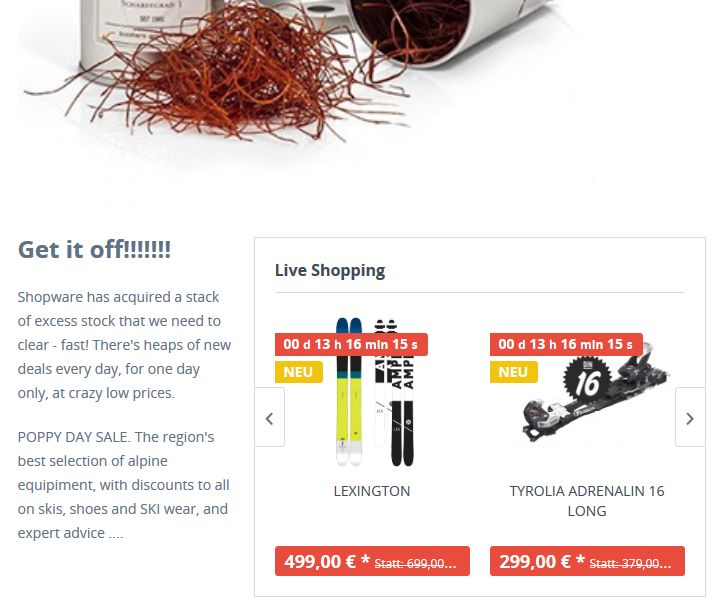
The Live Shopping Listing / Overview
The overview in the frontend gives you a complete listing of all active Live Shopping items. The URL had to be look like this: http://www.ihreDomain.de/livesshopping
FAQs Live Shopping
Why did the Live Shopping discount will not appear in the frontend?
Please check the item number. The item number should correspond to the specifications of Shopware: Create products
Live Shopping does not appear even though time and date are correctly set
The Live Shopping times dependent on server time. Check the adjusted time of your server and correct it (if necessary via your hosting partner)
Create a php file 'time.php' with the following content and upload it to your server.
<?php
echo date(DATE_RFC822);
?>
Afterwards call the php script with http://www.meinedomain.de/zeit.php. The current server time will be displayed.
Restrictions of the Live Shopping plugin
- Live Shopping prices on the item details page will be ignored within the bundles - but displayed and calculated in the shopping cart (valid only if the bundle plugin is activated) - Live shopping items should not be offered within a bundle
- Variant surcharges will not be considered
- Live shopping prices are not included in the price filter
- The number of items of the Live Shopping article cannot be changed in the shopping cart
- If there are many live-shopping items in your shop, this results in a large number of assignments in the database. You should make sure that the limit in your database is sufficient. If it is not, this can be increased by your hoster.
How to purchase Live Shopping
You can test and purchase the plugin directly from our Store , the official market place for all Shopware extensions.