Shopping Cart / Article Details
General
Overview of configurable settings for the product detail page and shopping cart:
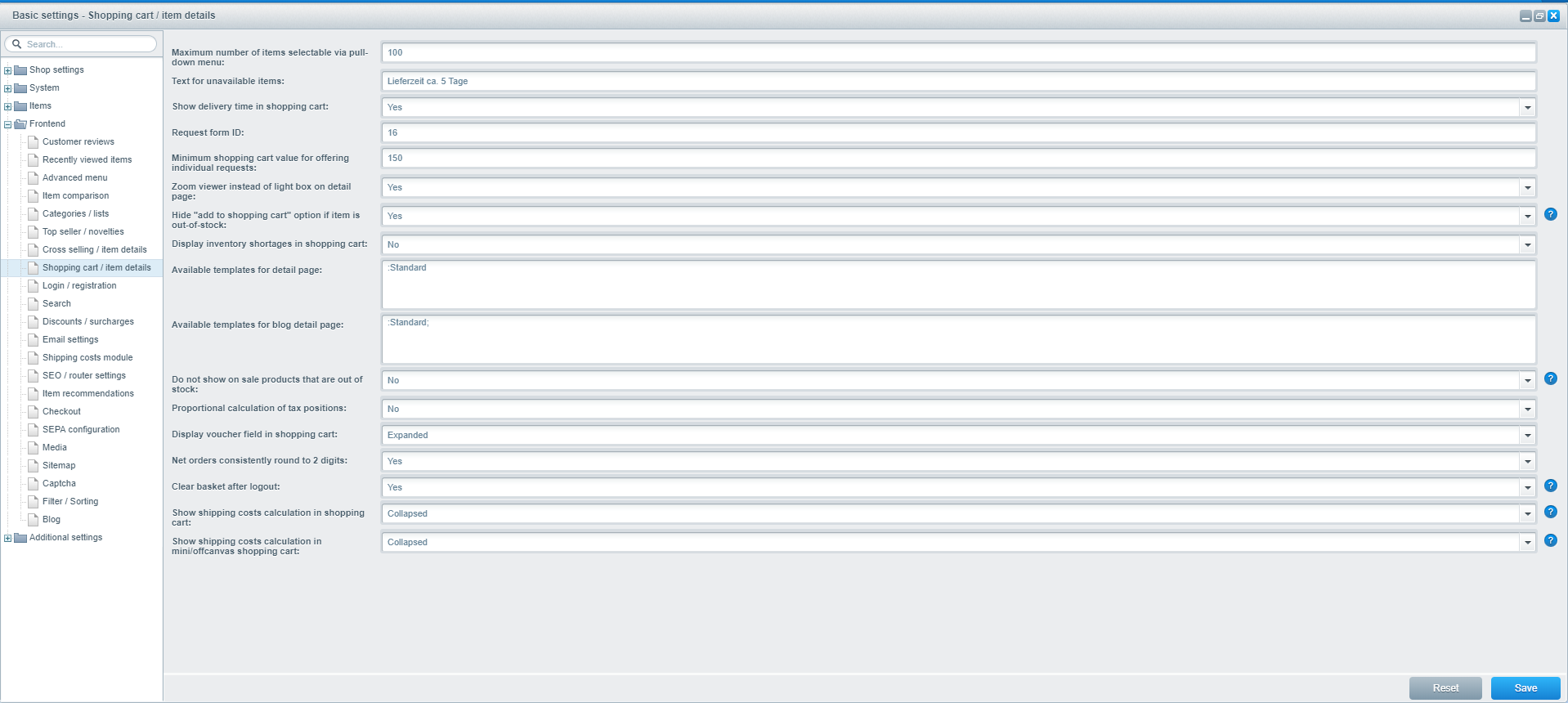
- Maximum number of items selectable via pull-down menu: place a limit on the number of items a customer is allowed to add to their shopping cart (this will appear on both the product detail page and in the shopping cart, before an order is placed).
- Text for unavailable items: message that appears when a product is not available (note: this setting only applies for Shopware 3.5 templates or earlier).
- Show delivery time in shopping cart: define whether the estimated delivery time should be displayed in the shopping cart.
- Request form ID: enter the ID of the form that appears in the shopping cart (forms can be created under Content > Forms. The ID can be found beneath the form name.
- Minimum shopping cart value for offering individual requests: the value entered here determines when the customer has the option of sending individual product requests (should be higher than 0, otherwise the customer can send requests from the product detail page).
- Zoom viewer instead of light box on detail page: define whether the product detail page displays images in a zoom viewer or light box.
For the zoom function, the image is always displayed in its original size. This means images with a low resolution will be scaled up and may appear blurry. For best results, use the zoom function only with high quality images.
- Display main items in bundles: this option is only valid for Shopware 4 templates.
- Hide “add to shopping cart” option if item is out-of-stock: as soon as a product becomes unavailable, the customer does not have to option of adding it to their cart.
- Display inventory shortages in shopping cart: when activated, a message will appear in the shopping cart, warning the customer of the product’s low inventory
- Available templates for detail page: define the available templates for the product detail page (i.e. if you want to create a different structure for the detail page of specific items / wish to display products that can only be ordered by phone). (Standard: :Standard) You can find an example of using this configuration here: Tutorial: Create a deviate detail page template
- Available template for blog detail page: similar process for the templates on the detail page. You can find an example of using this configuration here: Tutorial: Create a deviate detail page template
- Do not show on sale products that are out of stock: define whether or not clearance products without stock are displayed. Please note that the accuracy of this function may be impacted by the use of caching.
- Proportional calculation for different VAT rates: This is where you can switch on/off proportional calculation of VAT rates for rebates and surcharges. The option enables you to calculate VAT rates according to their actual tax rates. Previously in case several tax rates were present in a single transaction, the standard behaviour was to calculate VAT on grounds of the highest tax rate present. Now you can provide more accurate calculations on VAT rates by activating this option. Proportional calculation of VAT rates is NOT active by default!
- Display voucher field in shopping cart: Defines if the voucher field is displayed. Here it can be stated whether it is completely hidden or if it is displayed collapsed or expanded by default.
- Net orders consistently round to 2 digits: Forces to consistently round to 2 digits for net orders, to prevent "rounding errors".
- Clear basket after logout: If active it will empty the basket after logout. Otherwise it will keep the basket after logout and will be retained for a later login.
- Show shipping costs calculation in shopping cart: define whether or not the calculated shipping costs are displayed in the shopping cart.
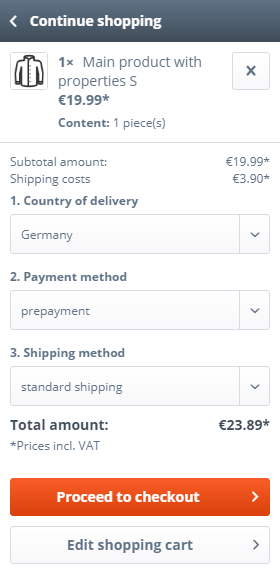
- Show shipping costs calculation in mini/offcanvas shopping cart: Here you can enable the calculation of shipping costs in the Mini-/OffCanvas shopping cart. Please note that the option "No" leads that no shipping costs are displayed and there is only a link to the shipping costs shop page.
Appearance in the frontend
Proportional calculation for different VAT rates
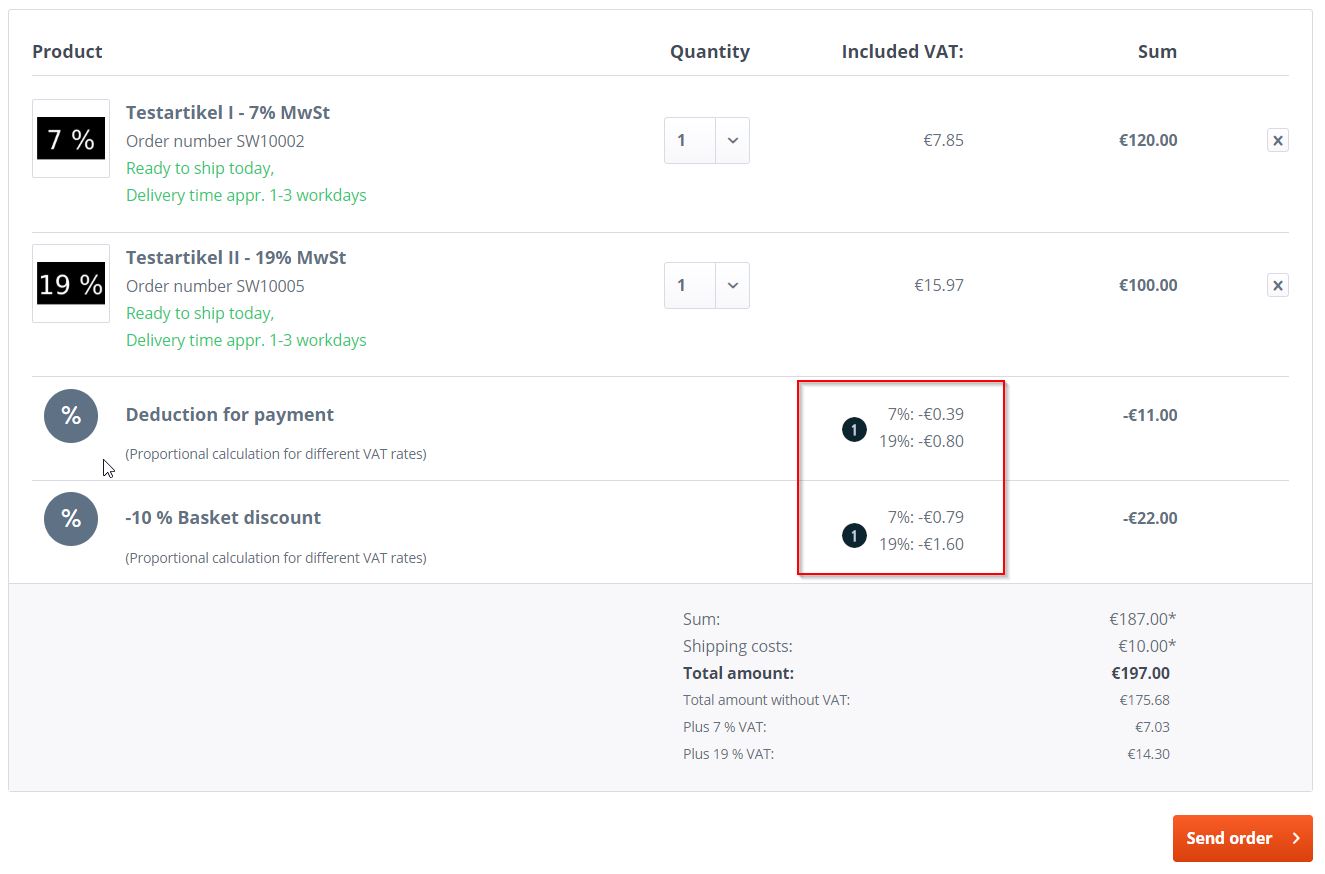
If the option Proportionate calculation for different VAT rates is activated, the proportionate taxes (1) for discounts and surcharges are displayed to your customers in the shopping basket.
Show shipping costs calculation in mini/offcanvas shopping cart
With the option Show shipping cost calculation in Mini/OffCanvas shopping cart there are three different choices which can be displayed in the shopping cart as follows.
No:
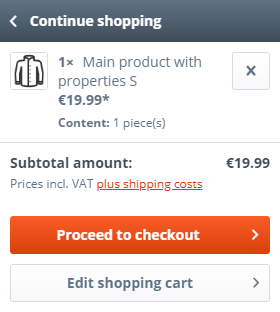
Collapsed:
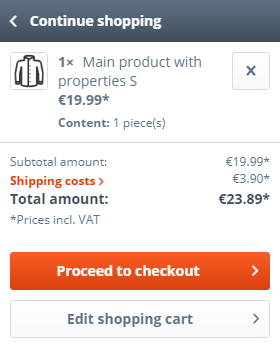
Expanded: