
User administration
In the User administration you can create new backend users and manage access permissions to areas, modules and plugins in accordance with certain group policies that you define per acl (access control List). Within the acls you have the possibility to control precisely which user is able to perform which activity. It's also possible to assign certain read permissions to a user/group without granting them permission to edit or delete.
In case you are using plugins without acl support and not every user should access the menu items of the plugin, we have created a tutorial for hiding those menu items.
Overview
In the overview of the user administration you will find three tabs at the top, the user management, the roles and the
resources & permissions.
At the bottom, after opening the module, you will find all the users that have already been created as well as the
current assignment of the users to the user groups. Here you are already in the menu item "User management".
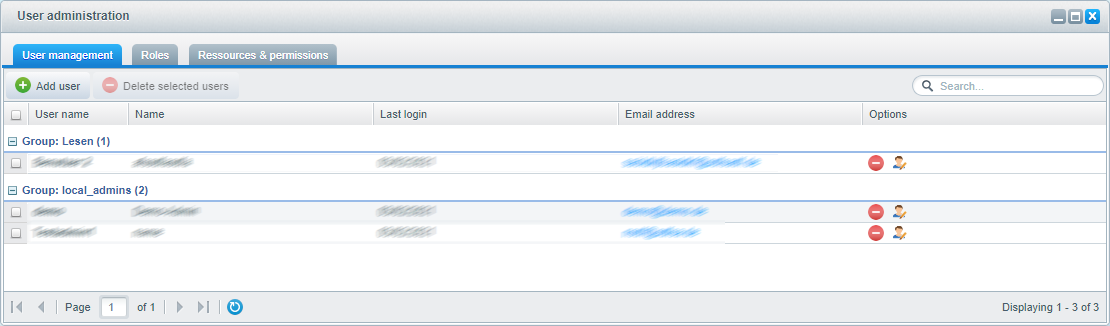
Adding a user
Using Add user you can add a new user, here you have to enter information like the username, email address, password and also the full name, default language and the assignment to a user group (role). This data can be changed anytime. If you miss required fields, they will show up by a red underline. Also take care of a sufficient complex and long password.
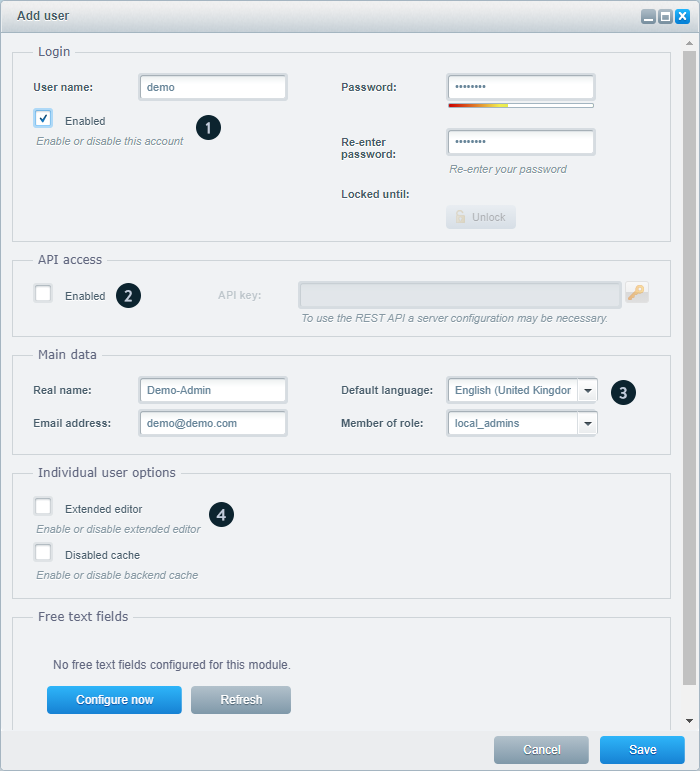
- Login (1): Here you have to provide the username and the password, you can also activate or deactivate the user here.
- API access (2): If you activate the API access, the key will prefilled with a random one. If you still have a key for this user, just enter it here.
- Main data (3): Here you can enter the full name of the user, his email address and the default language for the backend. Additionally, you assign the user to a role, just choose one from the dropdown. If the desired role is missing, just enter another one, create your role and finally assign the user to the desired role.
- Individual user options (4): Here you can enable the advanced editor for this user. You can also enable or disable the backend cache for development.
Creating user groups
By clicking the menu item Roles you can see all created roles and also create new
ones.
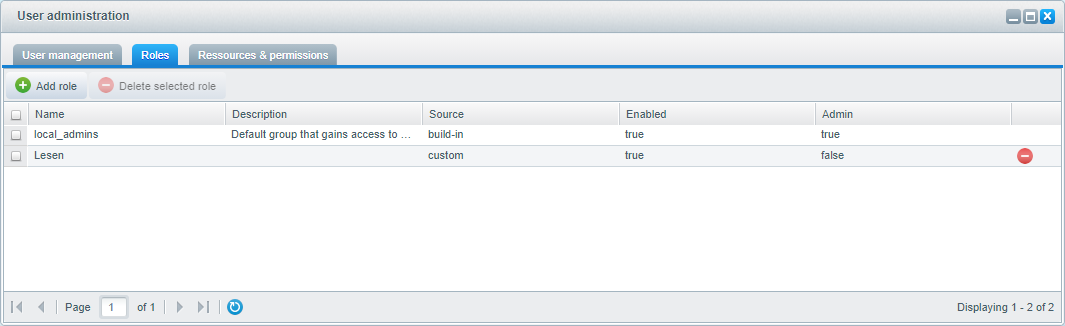
To create a new role, just click Add role, now a new line will appear in the overview. Now you can enter the name and description of this role and also activate / deactivate the role and set this role as an administrator role. Then click Update to save your entries. Now you can edit the permissions of this role and assign users to it.
Configuring role permissions
Via the menu item Resources and permissions you define the permissions of each role. Here you
can add new resources and grant permissions for all resources. The resources are displayed in a tree structure, so you
can open each resource by clicking the plus icon (1).
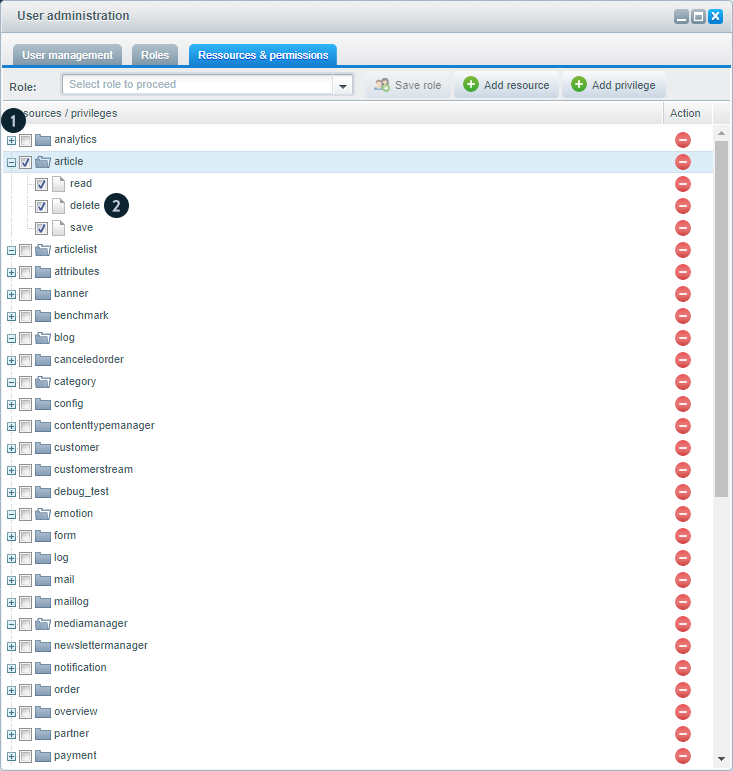
First select the role you want to edit by using the dropdown in the upper left of the area.
In each resource you can set the permissions to CREATE, READ, UPDATE and DELETE. Depending on what module you are editing, there may are more or less actions available. Now choose the permissions you want to grant for the selected role.
Save your changes by clicking Assign the selected privileges to the selected role (2) in the upper middle. The set permissions will work immediately.
Password Validation
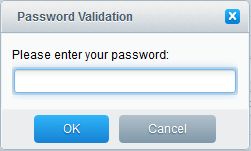
Every action in the user management module, except reading, a password prompt will popup, this makes sure, that nobody make changes in this module, who is not the owner of the logged in backend user.
- Create/Delete/Update a user
- Create/Delete/Update a role
- Create/Delete Privileges
- Create/Delete Resources
- Save Rules/Permissions relations
- The operation should only continue, if the given password of the current user is valid.
Default resources
| Ressource | Module / function |
|---|---|
| analytics | Marketing > Analysis > Analysis |
| article | Items > Create |
| articlelist | Items > Overview |
| attributes | Configuration > Free text field management |
| banner | Marketing > Banners |
| blog | Content > Blog |
| canceledorder | Marketing > Analysis > Cancellation analysis |
| category | Items > Categories |
| config | Configuration > Basic settings |
| contenttypemanager | Configuration > Content Types |
| customer | Customers > Customers |
| customerstream | Customers > Customer Streams |
| debug_test | UnitTests (only relevant for development) |
| emotion | Marketing > Shopping Worlds |
| form | Content > Forms |
| log | Configuration > Logfile |
| Configuration > Email templates | |
| mediamanager | Content > Media Manager |
| newslettermanager | Marketing > Newsletter Manager |
| notification | Marketing > Analysis > Email notification |
| order | Customers > Orders |
| overview | Marketing > Analysis > Statistical overview |
| partner | Marketing > Affiliate program |
| payment | Configuration > Payment methods |
| performance | Configuration > Cache / Performance |
| pluginmanager | Configuration > Plugin Manager |
| premium | Marketing > Premium items |
| productfeed | Marketing > Item export |
| riskmanagement | Configuration > Risk management |
| shipping | Configuration > Shipping costs |
| site | Content > Shop pages |
| snippet | Configuration > Snippets |
| supplier | Items > Manufacturers |
| swagimportexport | Content > Import / export |
| swagupdate | ? > Software update |
| systeminfo | Configuration > System info |
| theme | Configuration > Theme Manager |
| usermanager | Configuration > User administration |
| vote | Items > Customer reviews |
| voucher | Marketing > Vouchers |
| widgets | Backend widgets |
Some functions have dependencies. For example: You want to assign permissions only for editing articles. The article module depends on the supplier (manufacturer), category (categories) as well as the media manager when the article is called. To grant permissions for editing articles, you need to grant READ permissions also for supplier, category and media manager, otherwise the module won't work properly.
Examples
If the roles from the examples below should appear in the backend log, you have to grant also permissions for the resource log.
Articles
Users must have administrative access in order to read the category modules. These additional permissions have to be set:
category
mediamanager
article
emotion
articlelist
Categories
If a user should get full access to the category module, he must also have permissions for the articles and the media manager. The following permissions must be set:
category
article
mediamanager
Customers
If a user should get full access to the customer administration, he must also receive READ permissions for certain basic permissions. The following permissions must be set:
customer
mediamanager > read
emotion > read
ticket > read (if you use the ticket system)
customerstream > read
customerstream > search_index
customerstream > charts
Orders
If a user should get read-access to the customer module. These additional permissions are needed:
customer > read
order
order > create
order > read
order > update
order > delete
order > deleteDocument
supplier > read
Emotions
If a user should be able to create, edit or delete shopping worlds, he has to get read permissions for articles, supplier, blog and categories. Also full access to the media manager must be granted. You have to set the following permissions:
article > read
blog > read
catgory > read
emotion
emotion > create
emotion > delete
emotion > read
emotion > update
mediamanager
mediamanager > create
mediamanager > delete
mediamanager > read
mediamanager > update
mediamanager > upload
supplier > read
Adding user actions to the Shopware log
Interactions of users are written in the Shopware log only if the log permission is granted.
log
log > read
log > system
Ticketsystem (Plugin)
customer
customer > update
customer > read
customer > detail
usermanager
usermanager > read
usermanager > update
widgets
widgets > swag-ticket-system
ticket
ticket > create
ticket > read
ticket > update
ticket > delete
ticket > configure
mediamanager > read
Riskmanagement
premium > read
riskmanagement > save
riskmanagement > read
riskmanagement > delete
config
config > create
config > read
config > update
config > delete
Analysis
overview
overview > read
analytics
analytics > read