
Import / Export: Article
Items
When importing items you have to mind that every item has to have a name, ordernumber, supplier, tax and price to be a valid item. Also you should take care that a connection to another item can only be set if the item is already existing in the system before you set the connection.
General information
The csv-file had to be UTF8 encoded. Before an import to the live-system is done, you should create a database backup. In any case the import should be tested in a test- or staging-system.
Basic items
When importing items we have to distinguish between updating items and creating new items. For the update we only have to contain the mandatory fields ordernumber, mainnumber, the price as well as the fields we want to update. For a correct new item we also have to add the fields supplier, name, tax, price. To enable a correct display in the frontend we also should provide a category, if it is known. Only with those fields entered the item is properly shown in the back- and frontend.
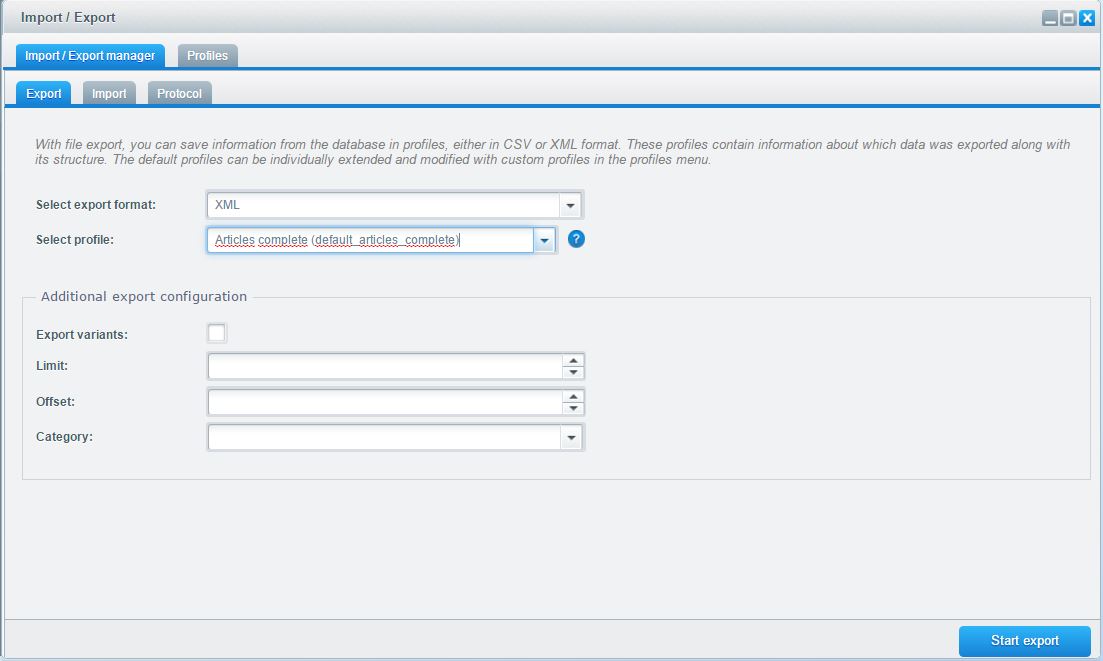
The function exporting of items supplies the following filters:
- Export variantes: Do you want to export variants yes/no
- Limit: Only the given number of items is exported
- Offset: The export starts after the given number of items
- Category: Only items in the given category are exported
Provided fields incl. description
Iterator: Article
| field name | description | values | characteristics |
|---|---|---|---|
| articleID | item ID, this field is a primary key in the database and has to be unique! | numeric | optional |
| name | item-name | text | mandatory field for new items |
| description | short description of the item | text | optional |
| descriptionLong | long description of the item | text | optional |
| date | date of creation | date | optional |
| pseudoSales | pseudosales | numeric | optional |
| topSeller | topseller | boolean | optional |
| metaTitle | meta-title | text | optional |
| keywords | keywords | text | optional |
| changeTime | change date | date | optional |
| priceGroupId | ID of the pricegroup | numeric | optional, found in s_core_pricegroups |
| priceGroupActive | pricegroup active | boolean | optional |
| lastStock | on sale If the stock is <=0, the item is not available |
boolean | optional, 1 = active, 0 = not active |
| crossBundleLook | crossBundleLook | boolean | optional |
| notification | Email notification | boolean | optional |
| template | Template | text | optional |
| mode | Modus | numeric | optional |
| availableFrom | Available from | date | optional |
| availableTo | Available to | date | optional |
| supplierId | supplier-Id | numeric | optional |
| supplierName | supplier | text | mandatory field for new items |
| taxId | tax-ID | numeric | optional |
| tax | tax | text | mandatory field for new items |
| filterGroupId | property-group-ID | numeric | optional |
| filterGroupName | property group | text | optional |
| variantId | item-detail ID | numeric | optional |
| ordernumber | item number | alphanumeric | mandatory field for new items |
| mainnumber | item number of the main article | alphanumeric | mandatory field for new items |
| kind | type | numeric | optional |
| additionaltext | additional text for variants | text | optional, generated automatically since Shopware 5 |
| inStock | stock | numeric | optional; Please do never use this column for imports if you are using the Shopware ERP powered by pickware, use the pickware-profiles instead |
| active | active | boolean | optional |
| stockMin | minimum stock | numeric | optional |
| weight | weight | numeric | optional |
| position | position | numeric | optional |
| width | width | numeric | optional |
| height | height | numeric | optional |
| length | length | numeric | optional |
| ean | EAN | text | optional |
| unitId | unit ID | numeric | optional |
| purchaseSteps | scale steps | numeric | optional |
| minPurchase | minimum purchase | numeric | optional |
| maxPurchase | maximum purchase | numeric | optional |
| purchaseUnit | unit of purchase | numeric | optional |
| referenceUnit | basic unit | numeric | optional |
| PackUnit | pack unit | text | optional |
| releaseDate | release date | date | optional |
| shippingTime | shipping time | numeric | optional |
| shippingFree | shipping free | boolean | optional |
| supplierNumber | supplier-number | text | optional |
| purchasePrice | purchase price | numeric | Optional |
| attributeAttr#(1-20) | attribute field | text | optional |
Minimum import for creating new items
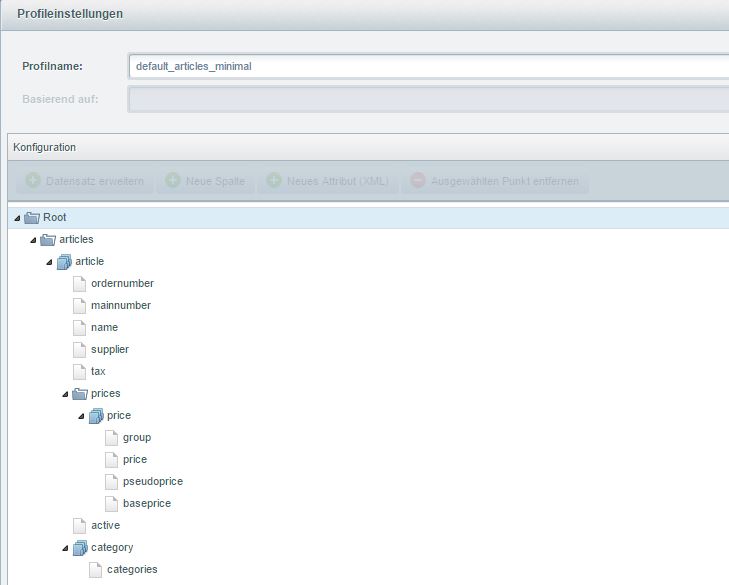
This import contains only the mandatory fields to create a new item. If an import contains those fields it is possible to
create a new article. For a correct display in the frontend the fields category and active should be
added.
The profile for this import can be selected from the list of default profiles by the name "Articles minimal
(default_articles_minimal)".
You get an example xml-file
here: ArticleMinimal.xml
You get an example csv-file
here: ArticleMinimal.csv
Default profile
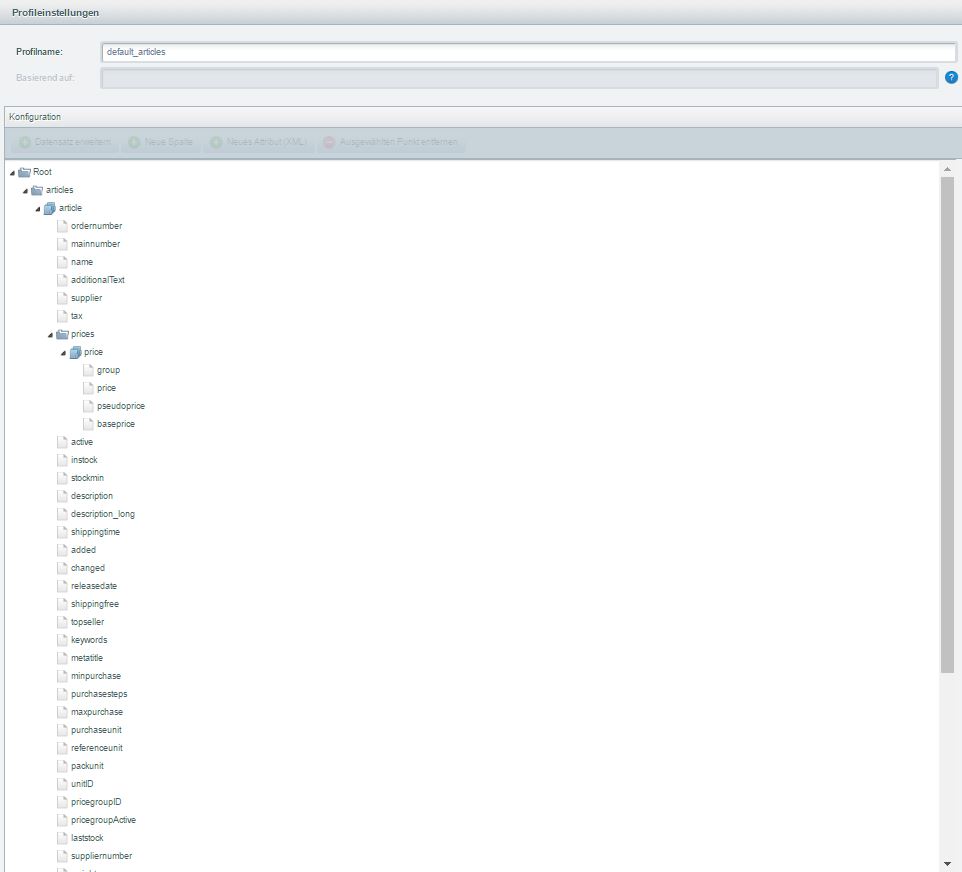
This profile provides all fields which are mandatory for creating a new item as well as most useful detail-fields. In
case properties, translations or images shall be im-/exported as well the respective iterators have to be
added.
The profile for this import can be selected from the list of default profiles by the name "Articles (default_articles)".
You get an example xml-file here: Article.xml
You get an example csv-file
here: Article.csv
Article complete
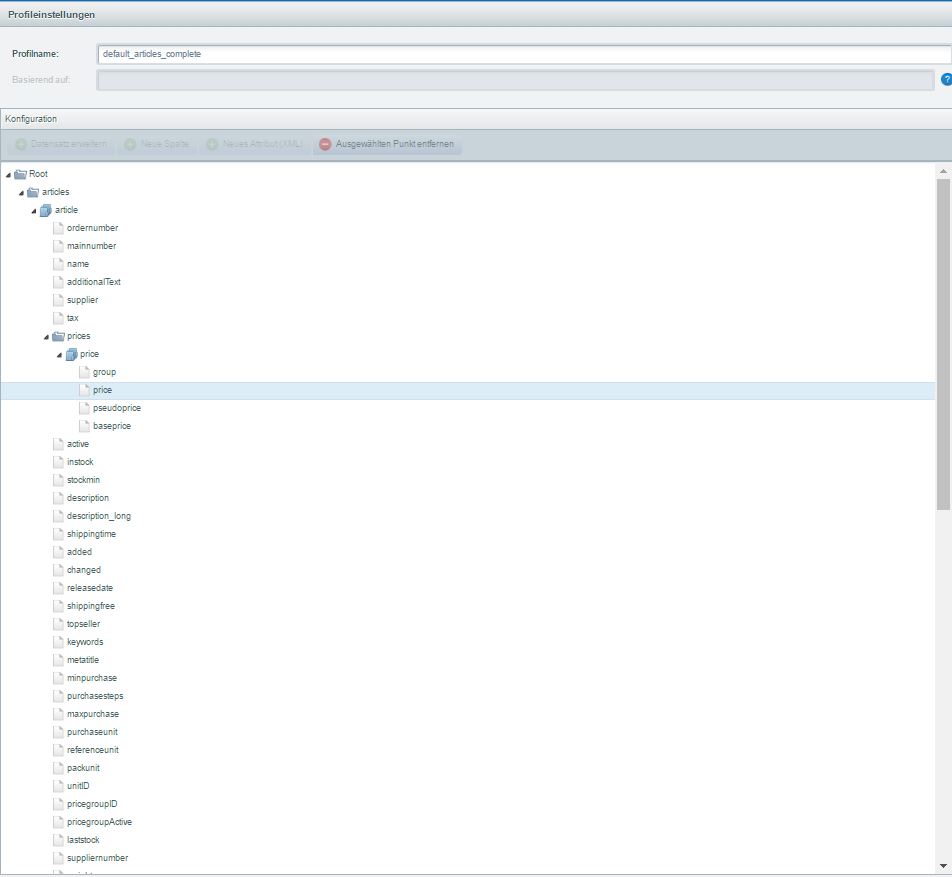
This profile contains many possible useful columns and datasets like prices, variants, properties and many
more.
The profile for this import can be selected from the list of default profiles by the name "Article complete
(default_articles_complete)".
You get an example xml-file
here: ArticleComplete.xml
You get an example csv-file
here: ArticleComplete.csv
Variants
When creating variant items you have to mind whether you want to add variants to an existing article or create a new article which will have variants. It is not possible to delete variants with an import or join multiple existing non-variant-items to one variant-item. The node kind is setting if the variable is the preselected variant. It has the value 1 for the preselected variant and 2 for every other variant. Please mind that only one variable is allowed to get a 1 in the kind node, all other variants have to have 2 as the value.
Provided fields incl. description
Iterator: Configurator
| field name | description | values | characteristics |
|---|---|---|---|
| variantId | item-detail ID | numeric | optional |
| configOptionId | options-ID | alphanumeric | optional |
| configOptionName | option-name | text | mandatory field |
| configOptionPosition | position of the option | numeric | optional |
| configGroupId | group-ID | numeric | optional |
| configGroupName | group-Name | text | mandatory field |
| configGroupDescription | description of the group | text | optional |
| configSetId | set-ID | numeric | optional |
| configSetName | set-name | text | optional |
| configSetType | set-type | text | optional |
Minimal import for creating variant items
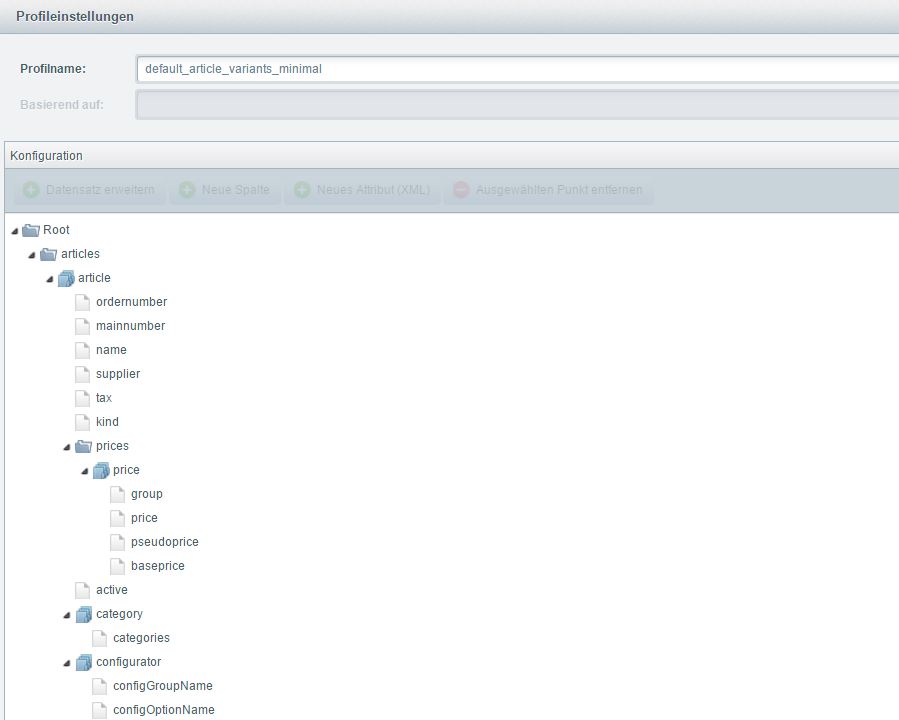
To create a variant item the iterator configurator has to be added (already contained in the
default profile). Very important are the nodes configuratorGroupName and configuratorOptionName which
are assembled to a joint column configuratorOptions. The build is done like this group:option.
Please mind the notes according to possible error-sources below.
The profile for this import can be selected from the list of default profiles by the name "Article variants minimal
(default_article_variants_minimal)".
You get an example xml-file here: ArticleVariantsMinimal.xml
You get an example csv-file
here: ArticleVariantsMinimal.csv
Images
To import images you have to use the iterator image. You have to distinguish if you want to add an image via URL or from the media manager.
Currently it is not possible to export images with the cli.
Provided fields incl. description
Iterator: Image
Currently you can add existing images from the media manager as well as new images. For a separate image import you have to use the profile article images, which contains additional image options.
| field name | description | values | characteristics |
|---|---|---|---|
| id | id from s_article_images | numeric | optional |
| variantId | item-detail ID | numeric | optional |
| articleId | item-ID | numeric | optional |
| path | name of the image | text | optional |
| imageUrl | HTTP-Link to the image | text | mandatory for new images |
| main | preview image | boolean | mandatory field |
| mediaId | media ID | numeric | mandatory, found in s_media |
| thumbnail | thumbnail | numeric | optional |
Adding image with an HTTP-Link
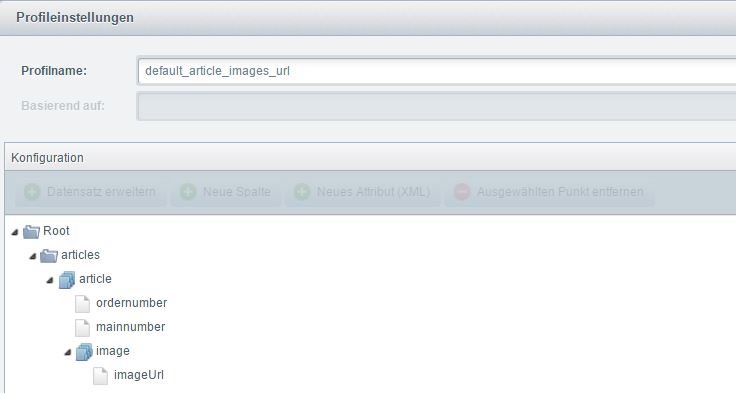
To add a new image to an existing article with an HTTP-Link you can use this profile.
The profile for this import can be selected from the list of default profiles by the name "Articlebilder über URL
(default_article_images_url)".
You get an example xml-file here: ArticleImageURL.xml
You get an example csv-file
here: ArticleImageURL.csv
Similar articles
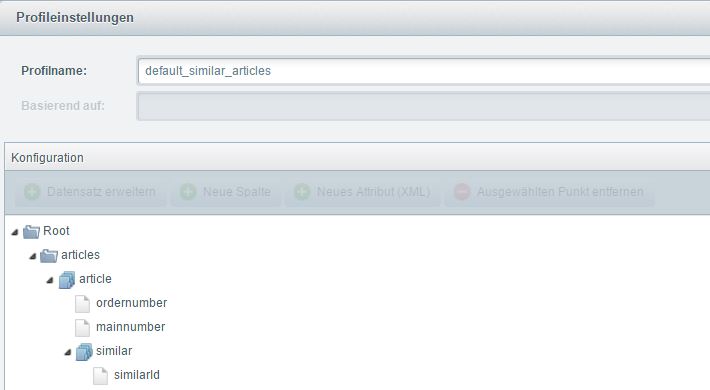
The iterator similar is used for similar items. The link is done with the column ordernumber, the item number of the product.
Provided fields incl. description
Iterator: Similar
| field name | description | values | characteristics |
|---|---|---|---|
| ordernumber | item number | alphanumeric | |
| mainnumber | item number of the main item | alphanumeric | |
| similarId | similar-ID | numeric | optional (multiple similar items are separated with a pipe) |
Minimal import to assign similar items to an existing item
This profile can be used if you want to assign an existing item, for example SW10002.3, another also existing item as a
similar item.
The profile for this import can be selected from the list of default profiles by the name "Article similars
(default_similar_articles)".
You get an example xml-file here: ArticleSimilar.xml
You get an example csv-file
here: ArticleSimilar.csv
Create a new item and a new similar item
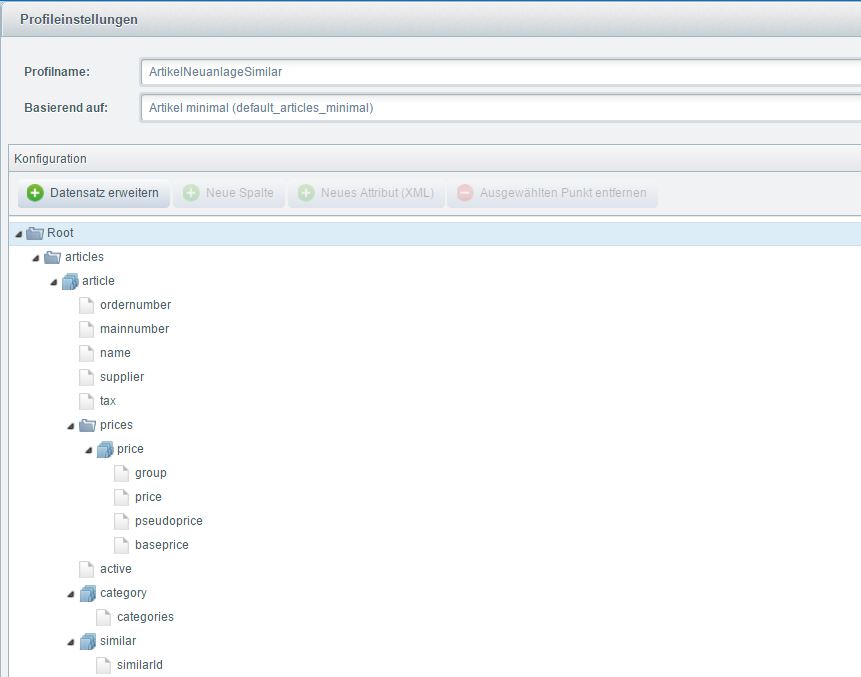
In this profile we create two new item, which have a similar-relationship. For this the similar item has to be created
first, to be assigned to the second new item.
The profile for the import can be downloaded
here: ArticleNewSimilar.json
You get an example xml-file here: ArticleNewSimilar.xml
You get an example csv-file
here: ArticleNewSimilar.csv
Accessory items
Using the iterator accessory you can import accessory items. This also uses the ordernumber as a reference.
Provided fields incl. description
Iterator: Accessory
| field name | description | values | characteristics |
|---|---|---|---|
| accessoryId | accessory-ID | numeric | optional |
| ordernumber | item-number | alphanumeric | Bestellnummern der Zubehör-Article mit einem Pipe getrennt |
| articleId | item-ID | numeric | optional |
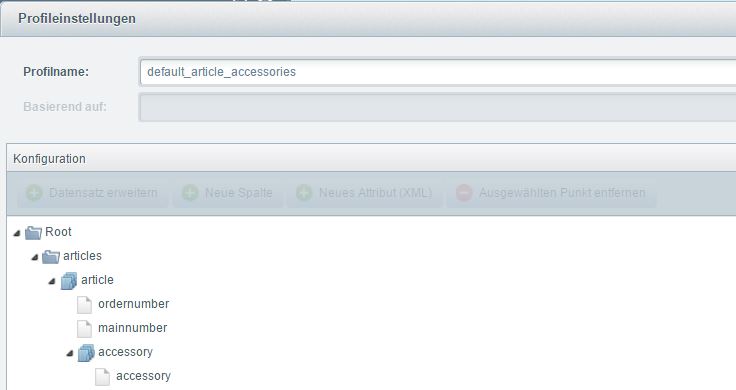
Minimal import to assign accessory items to an existing item
This profile assigns an existing item an existing accessory item. Only the ids of the items are necessary to create the
relation.
The profile for this import can be selected from the list of default profiles by the name "Article accessories
(default_article_accessories)".
You get an example xml-file here: ArticleAccessory.xml
You get an example csv-file
here: ArticleAccessory.csv
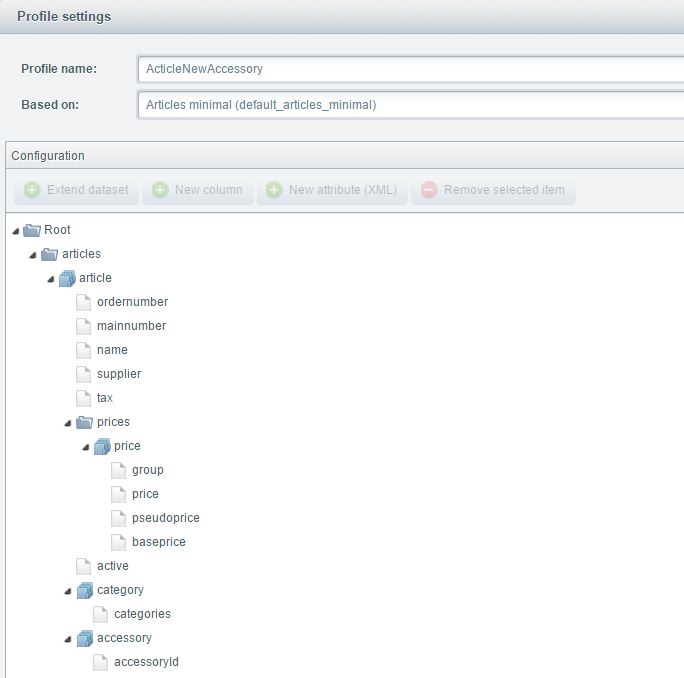
Creating new items and new accessory item
With this profile we can create two new items, which have an accessory-relationship. First the accessory item has to be
created, so it can be assigned the second new item as an accessory item.
The profile for the import can be downloaded
here: ArticleNewAccessory.json
You get an example xml-file here: ArticleNewAccessory.xml
You get an example csv-file
here: ArticleNewAccessory.csv
Prices
With this profile you can import customer-group-prices. For this you have to use the iterator price (already included in the default profile). If you want to import a price for a different customer-group than EK, it is necessary to insert the node priceGroup to the profile. For every customer-group a new price column is created in the CSV-export. You can also import prices for different customer-groups by using price_EK or price_H. This iterator is necessary to create a new article because the price is a mandatory field.
Via import you can't delete graduated prices from an article or deleting just single steps. Changes on graduated prices should evertime be made using the seperate profile "Prices" and not using the general article profile. Informations about the prices-profile can be found here.
Provided fields incl. description
Iterator: Price
| field name | description | values | characteristics |
|---|---|---|---|
| variantId | item-detail ID | numeric | optional |
| articleId | item-ID | numeric | optional |
| price | item price | numeric | sales price |
| pseudoPrice | pseudo price | numeric | optional |
| basePrice | purchase price | numeric | optional |
| priceGroup | customer-group | numeric | Shortage of the customer-group |
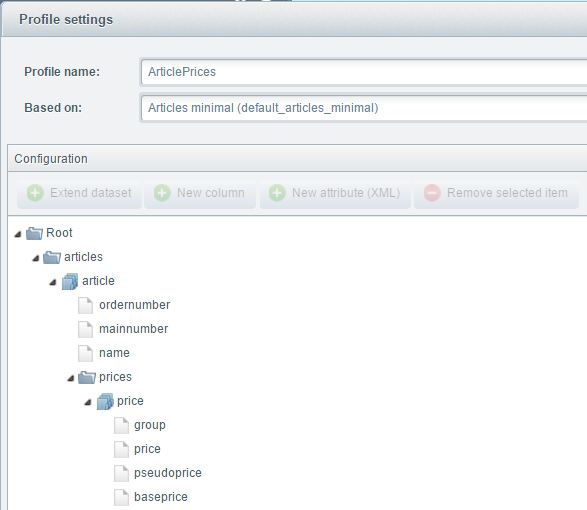
Updating prices for existing items
This profile imports prices for an existing item. For this we use the iterator price.
The profile for the import can be downloaded
here: ArticlePrices.json
You get an example xml-file here: ArticlePrices.xml
You get an example csv-file
here: ArticlePrices.csv
Properties
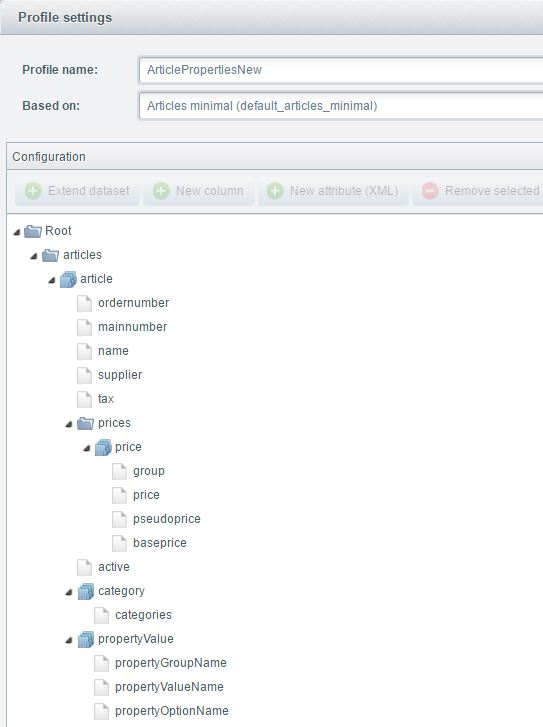
To import properties the iterator properties is used. You can also enter non existing properties. Those will be created anew with the import. The nodes propertyValueName and propertyOptionName will be summarized to one column propertyValueName. The structure is like this group:option. Properties can be imported since the version 1.0.2.
Provided fields incl. description
Iterator: PropertyValues
| field name | description | values | characteristics |
|---|---|---|---|
| articleId | item-ID | numeric | optional |
| propertyGroupName | name of the property-set | text | mandatory field |
| propertyValueId | property-Value-ID | numeric | optional |
| propertyValueName | name of the property-option | text | mandatory field |
| propertyValuePosition | position | numeric | optional |
| propertyvalueNumeric | sort | numeric | optional |
| propertyOptionName | name of the property-group | text | mandatory field |
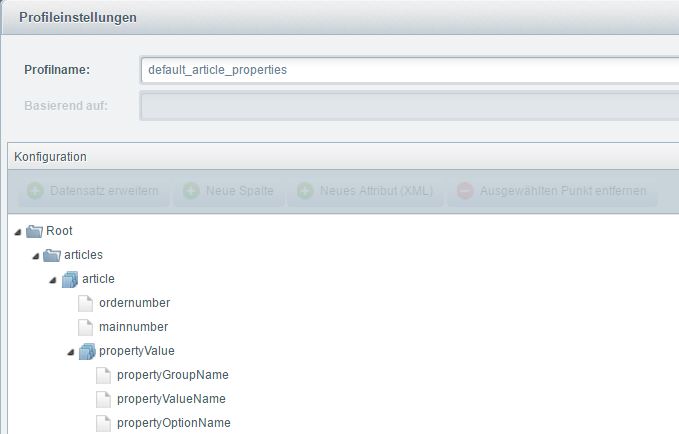
Adding properties to an existing item
This profile is used to add properties to an already existing item.
The profile for this import can be selected from the list of default profiles by the name "Add article properties
(default_article_properties)".
You get an example xml-file here: ArticleProperties.xml
You get an example csv-file
here: ArticleProperties.csv
Create new item with new properties
This profile can be used for creating a new article and adding non existing properties.
The profile for the import can be downloaded
here: ArticlePropertiesNew.json
You get an example xml-file here: ArticlePropertiesNew.xml
You get an example csv-file
here: ArticlePropertiesNew.csv
Categories
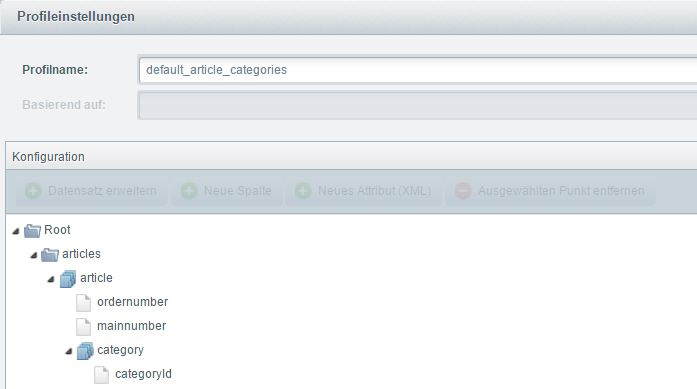
The iterator category is used for assigning categories. The relation to the category is only available with the category-id. This id can be found in the category module in the backend. Multiple categories are separated with a pipe.
Provided fields incl. description
Iterator: Category
| field name | description | values | characteristics |
|---|---|---|---|
| categoryId | category-ID | numeric | Pflichtfeld |
| categoryPath | category-path | text | optional |
| articleId | item-ID | numeric | optional |
Add a category to an existing item
This profile can be used to add a category to an existing item. It is not possible to delete a category relation in the
import.
The profile for this import can be selected from the list of default profiles by the name "Article categories
(default_article_categories)".
You get an example xml-file here: ArticleCategories.xml
You get an example csv-file
here: ArticleCategories.csv
Possible errors and solving approach
configuratorGroup
By default the import-export-module separates the options and groups of variants with a colon. If there already is a colon in the group name this can create errors while importing, because the importer can no longer define, where the option begins (e.g.Please choose::red). In this case you can use the conversions for the export and set a conversion for the column configGroupName. It is enough to use a replace: {$configGroupName|replace:":":""}
After this you can redo the group in the database and add an ":". For this purpose you just change the column name in the table s_article_configurator_groups.